Xero integration guide
Connect your clients' Xero organisations to pull financial data directly into OneHQ — powering BAS readiness, tax return preparation, risk analysis, and tax planning.
Overview
The OneHQ Xero integration is read-first. It pulls financial data from your clients’ Xero organisations to power compliance work, and it can write back to Xero only where you ask it to — posting the journals the Tax Engine prepares, and approving a draft invoice you choose to send.
Once connected, Xero data is used across several areas of OneHQ:
- BAS readiness — GST analysis, bank reconciliation checks, payroll data, risk engine anomaly detection
- Tax return preparation — P&L, Balance Sheet, Trial Balance comparatives, super compliance, BAS-to-return reconciliation
- Tax planning worksheets — live financial data for group-level year-end planning
- Financial snapshots — monthly income/expense trends on entity detail views
- Entity Financials tab — on-demand Xero report viewer (P&L, Balance Sheet, Trial Balance, BAS)
Data flow diagram
The diagram below shows how data moves between Xero and OneHQ. Most of it flows one way — from Xero into OneHQ, which reads Xero to do the work. OneHQ writes back only where you ask it to (see below).
Your clients' orgs
(on-demand)
Your practice
| Data from Xero | Used in OneHQ for | Direction |
|---|---|---|
| Profit & Loss | Tax Returns, Tax Planning, Financial Snapshot, Entity Financials | Xero → OneHQ |
| Balance Sheet | Tax Returns, Tax Planning, BAS readiness | Xero → OneHQ |
| Trial Balance | Tax Returns, Entity Financials | Xero → OneHQ |
| Bank Transactions | BAS risk analysis (12 anomaly rules), BAS-to-return reconciliation | Xero → OneHQ |
| Bank Summary | Bank reconciliation status check | Xero → OneHQ |
| Manual Journals | BAS risk analysis | Xero → OneHQ |
| Payroll (Pay Runs) | BAS wages reconciliation, STP, Payroll Tax, Tax Planning, super compliance | Xero → OneHQ |
| Tax Rates | GST type classification for risk engine | Xero → OneHQ |
| Chart of Accounts | Account classification, risk analysis | Xero → OneHQ |
| Organisation info | ABN matching during connection setup | Xero → OneHQ |
Getting started
Before connecting Xero, make sure you have:
- An active OneHQ practice (Admin role required for initial setup)
- A Xero login with access to the client organisations you want to connect
- Entities created in OneHQ for the clients you want to link (with ABNs entered for automatic matching)
The connection process takes about 30 seconds and you can connect multiple Xero organisations at once.
Connecting to Xero
Open Settings > Connections
Navigate to Settings (gear icon in the sidebar), then click the Connections tab. You'll see a row for "Xero — Client Connections".
Click "Connect"
Click the Connect button on the Xero row. You'll be redirected to Xero's authorisation page. Sign in to Xero and select which organisations you want to grant access to.
Authorise access
Xero will show the permissions OneHQ is requesting. Click "Allow Access" to authorise. You’ll be redirected back to OneHQ.
Automatic ABN matching
Once connected, OneHQ reads each organisation's ABN from Xero and automatically matches it to any entity in your practice with the same ABN. Matched entities are linked immediately — no manual work needed.
Review mappings
Expand the Xero section in Settings > Connections to see all connected organisations and which entity each is mapped to. You can change mappings at any time using the dropdown.
Connecting from an entity
You can also initiate a Xero connection directly from an entity's detail view. In the entity's Quick View panel, look for the Connections card — click "Connect Xero" to start the OAuth flow specifically for that entity. The newly connected organisation will be linked to that entity automatically.
Multiple staff connections
Multiple staff members can each connect their own Xero accounts. OneHQ aggregates all connected organisations across all staff in the practice. This is useful when different team members manage different Xero clients.
Practice subscription (optional)
If your practice itself uses Xero for invoicing, you can connect a separate "Practice Subscription" under Settings > Connections. This links your firm's own Xero organisation for internal billing features, and is separate from client connections.
Entity mapping
Each entity in OneHQ can be linked to one Xero organisation. This mapping determines which Xero data appears on that entity's jobs, financial views, and compliance checks.
How entities get mapped
There are three ways an entity gets linked to a Xero organisation:
- Automatic ABN matching — during the OAuth connection, OneHQ reads each Xero org's ABN and matches it to unmapped entities with the same ABN. This is the most common method.
- Manual mapping in Settings — expand the Xero section in Settings > Connections. Each connected org has a dropdown showing all entities — select the matching one.
- Manual mapping on the entity — in the entity's Quick View panel under Connections, use the "Link Xero org..." dropdown to select from available (unlinked) Xero organisations.
Re-running automatic matching
If you add ABNs to entities after connecting Xero, you can re-run automatic matching. In Settings > Connections, expand the Xero section and click the "Auto-match" button. This will check all connected orgs against unmapped entities.
Unlinking an entity
To unlink an entity from its Xero organisation without disconnecting from Xero entirely, either:
- In Settings > Connections, change the entity dropdown to "Not linked"
- On the entity's Quick View, click the "x" button next to the linked Xero org name
This removes the mapping but keeps your Xero OAuth connection active for other entities.
What data syncs
You always see current figures. OneHQ pulls the latest from Xero whenever you open a job, a financial view or a compliance check — nothing to refresh, no overnight copy to go stale.
Reports
| Xero report | Used in |
|---|---|
| Profit & Loss | Tax Returns, Tax Planning, Financial Snapshot (monthly chart), Entity Financials |
| Balance Sheet | Tax Returns, Tax Planning, BAS readiness (wages payable), STP |
| Trial Balance | Tax Returns, Entity Financials |
| Bank Summary | BAS readiness, Tax Planning (reconciliation gap) |
| Published BAS/GST | Entity Financials |
Transactions
| Xero data | Used in |
|---|---|
| Bank transactions | BAS risk analysis (12 anomaly rules), BAS-to-return reconciliation, contractor payments, TPAR |
| Manual journals | BAS risk analysis |
| General journals | Wages payable reconciliation |
| Payments | Unreconciled payment detection |
Payroll
| Xero payroll data | Used in |
|---|---|
| Employees | Employee name resolution across payroll views |
| Pay runs & pay slips | BAS wages reconciliation (W1/W2), STP finalisation, Payroll Tax, Tax Planning, super compliance |
Reference data
| Xero reference data | Used in |
|---|---|
| Tax Rates | GST type classification for risk engine rules |
| Chart of Accounts | Account type classification, balance sheet detection |
| Organisation | ABN + legal name for auto-matching |
How data appears in OneHQ
Once an entity is linked to a Xero organisation, financial data appears automatically across several views:
BAS job detail
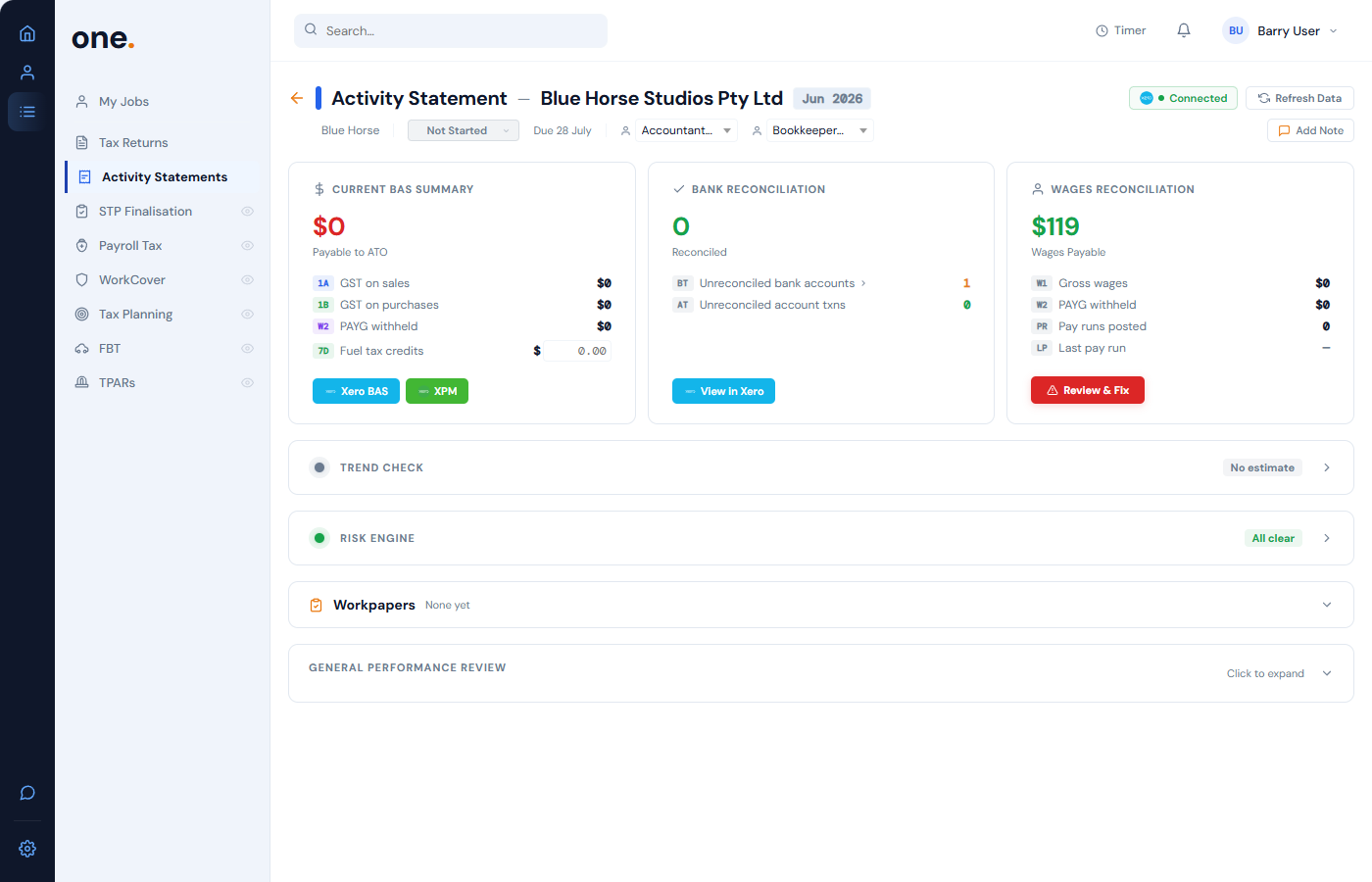
When you open an Activity Statement (BAS) job, OneHQ fetches BAS readiness data from Xero. You'll see:
- GST amounts — current period GST collected and paid, compared against estimates
- Bank reconciliation status — whether the Xero bank account is reconciled for the BAS period
- Risk engine analysis — 12 automated anomaly checks on transactions, with traffic-light severity ratings
- Payroll reconciliation — W1/W2 amounts, wages payable movements, per-employee pay run details
Tax planning worksheet
The Tax Planning job detail pulls live Xero data for each entity in a client group, populating an interactive planning worksheet with current year financials, payroll data, unreconciled transactions, and projected tax estimates.
Entity detail — Financial Snapshot
When viewing an entity, a Financial Snapshot card shows a monthly bar chart comparing current and prior financial year income and expenses. This auto-loads from Xero when you view the entity.
Entity Financials tab
The Financials tab on any entity provides an on-demand report viewer. Select a report type (Profit & Loss, Balance Sheet, Trial Balance, or BAS), choose a date range, and click "Fetch Report" to pull the data directly from Xero.

Tax return job detail
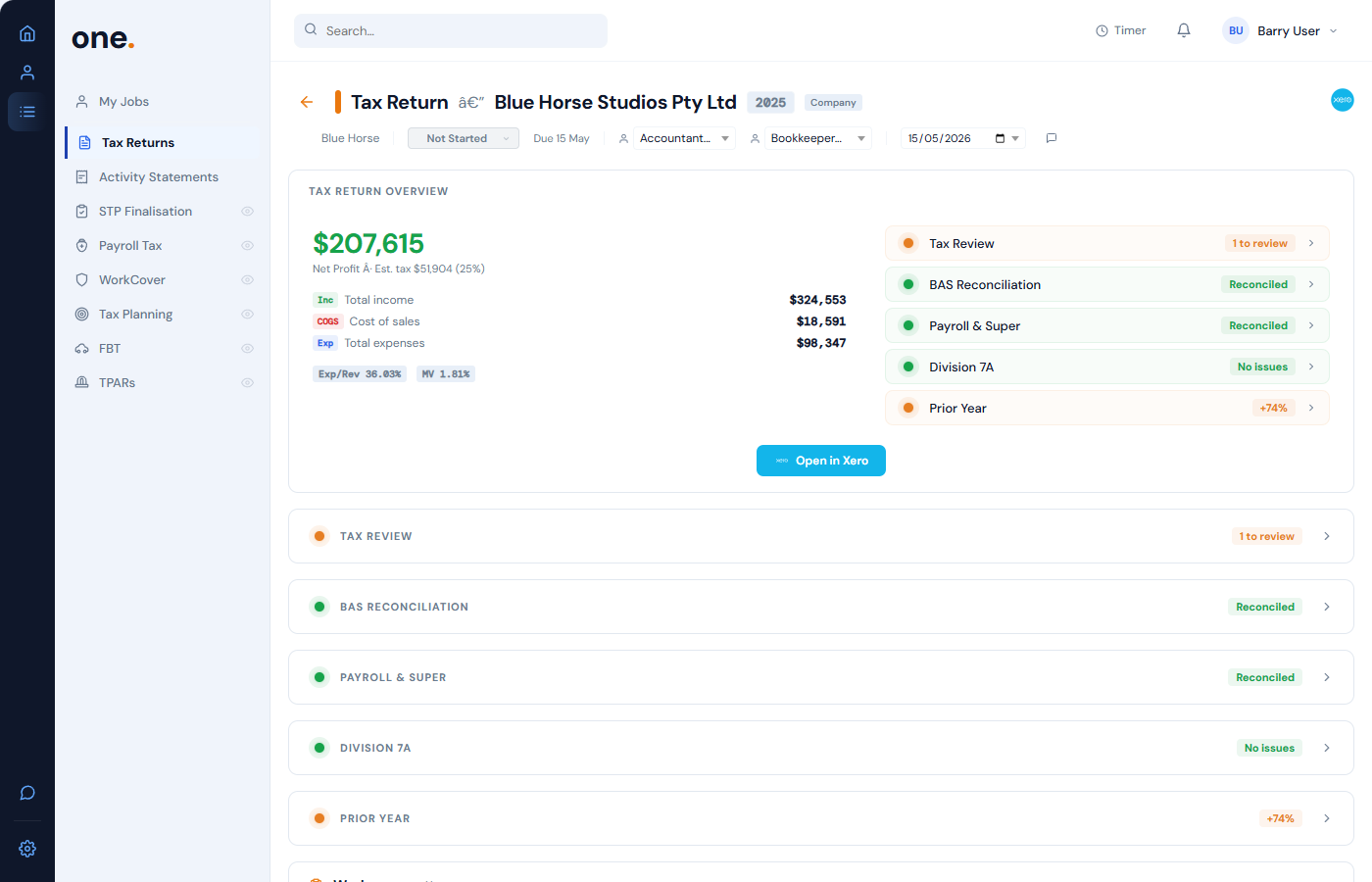
For Tax Return jobs, OneHQ checks tax readiness by pulling:
- P&L and Balance Sheet — current and prior year comparatives
- Trial Balance — full account listing for review
- Super compliance — pay run super contributions vs SG requirements
- BAS-to-return reconciliation — checks BAS amounts tie back to the annual return
- Division 7A analysis — loan account detection for companies
When Xero is not connected
If Xero is not connected, or an entity is not linked to a Xero organisation:
- BAS job details show "Connect Xero" prompts instead of financial data
- Tax Return readiness checks show "No Xero connection" status
- The Financial Snapshot card is hidden entirely
- The Entity Financials tab shows an empty state with a "Connect Xero" link

All other OneHQ functionality works without Xero — it simply enhances compliance workflows with live financial data.
Configuration & settings
Connection management
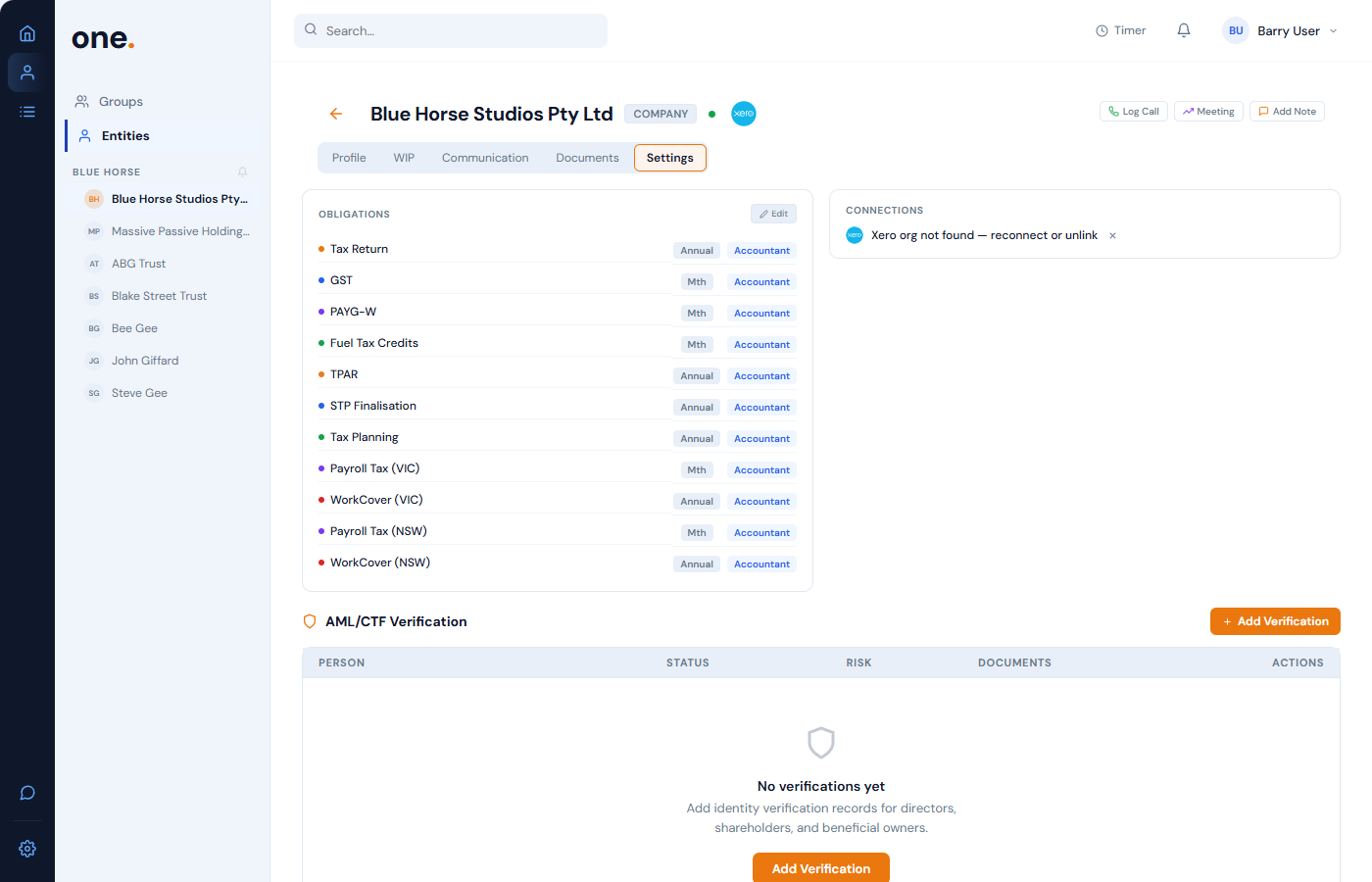
All Xero connection settings are in Settings > Connections. From the expanded Xero section you can:
- View all connected Xero organisations and their mapped entities
- Change entity mappings via the dropdown on each row
- Connect additional Xero organisations ("Connect More Orgs" button)
- Refresh the list of available organisations ("Refresh" button)
- Disconnect individual organisations or all at once
- Re-run automatic ABN matching ("Auto-match" button)
Display preferences
Under Settings > Display & Preferences, you can toggle:
- Show Xero Links — controls whether "Open in Xero" quick-link buttons appear on job pages
- Show XPM Links — controls Xero Practice Manager deep-link buttons
Xero deep-links
If you set a Xero slug on an entity (in the entity's settings), OneHQ will show "Open in Xero" buttons on job detail pages. These open the relevant Xero page for that organisation directly in your browser. The slug is a short code found in your Xero URLs.
Risk engine configuration
The risk engine settings (under Settings > Practice Details) affect how BAS readiness data from Xero is analysed. You can choose from three presets:
- Fast — fewer checks, lower sensitivity (good for bulk review)
- Standard — balanced analysis (recommended for most practices)
- Conservative — thorough checks with lower materiality thresholds
These presets control materiality floors, scaling factors, and which anomaly rules are active.
Disconnecting Xero
You can disconnect Xero organisations individually or all at once.
Disconnect a single organisation
- Go to Settings > Connections
- Expand the Xero section
- Click the "Disconnect" button on the specific organisation row
- Confirm the disconnection
This revokes OAuth access for that single organisation, unlinks any entities mapped to it, and removes it from your available connections. Other Xero organisations remain connected.
Disconnect all organisations
- Go to Settings > Connections
- Click the "Disconnect" button on the main Xero row
- Confirm the disconnection
This revokes all OAuth access, unlinks all entities from their Xero organisations, clears any practice subscription connection, and removes all stored tokens.
Revoking access from Xero's side
You can also revoke OneHQ's access directly from Xero. Go to Xero Settings > Connected Apps and disconnect OneHQ from there. Note that this won't automatically update the connection status in OneHQ — you should also disconnect from within OneHQ Settings to keep things clean.
Frequently asked questions
Mostly, but not entirely. OneHQ reads your ledger for analysis and reporting, and writes to it only at your direction: the Tax Engine prepares manual journals that you review and then post, revise or reverse, and you can approve a draft invoice for Xero to send. It never creates or modifies contacts, bank feeds or pay runs, and it never writes without a user action.
You always see the latest figures — OneHQ pulls them from Xero as you open each job, financial view or compliance check, so there's no stale overnight copy to worry about.
Reference data like Tax Rates and the Chart of Accounts is cached for 30 minutes to reduce API calls. All other data (P&L, Balance Sheet, transactions, payroll) is fetched live each time.
OneHQ requests these read scopes:
- accounting.transactions.read — bank transactions, invoices, payments, journals
- accounting.contacts.read — contact information
- accounting.reports.read — P&L, Balance Sheet, Trial Balance, Bank Summary
- accounting.settings.read — tax rates, chart of accounts, organisation info
- accounting.journals.read — journal entries
- payroll.payruns.read — payroll data (pay runs, employees)
- payroll.settings.read — payroll configuration
And these write scopes, for the actions described above:
- accounting.settings — read the chart of accounts and tax rates, and set up the accounts a journal posts to
- accounting.manualjournals — create, update, post, reverse and void the journals the Tax Engine prepares
- accounting.banktransactions — recode a transaction where you ask OneHQ to
- accounting.invoices — approve a draft invoice and ask Xero to send it
Every write is initiated by a user in your practice. OneHQ does not alter a ledger on its own.
Go to Settings > Connections, expand the Xero section, and click "Disconnect" — either on a specific organisation row (to disconnect just that one) or on the main Xero row (to disconnect all). Disconnecting revokes OAuth access and unlinks entities from their Xero orgs.
See the Disconnecting Xero section above for full details.
Financial data only appears when an entity is linked to a Xero organisation. Check that:
- Your practice has a Xero connection (Settings > Connections)
- The entity is mapped to a specific Xero organisation (check the entity's Quick View panel under Connections, or Settings > Connections > Xero)
- Your Xero token hasn't expired (try clicking "Refresh" in Settings > Connections)
No. OneHQ is a separate product with its own subscription. Connecting OneHQ to Xero does not add any charges to your Xero subscription, create any Xero invoices, or appear on your Xero bill. The OneHQ integration appears as a connected app in your Xero settings (under Connected Apps), but that's purely for managing access — it doesn't affect billing.
No. OneHQ reads reconciliation status from Xero (whether accounts are reconciled for a period), but actual reconciliation must be done in Xero. OneHQ's BAS readiness check will flag if bank accounts are unreconciled for the BAS period so you can address it in Xero before lodging.
Disconnecting removes the live Xero data feeds. Your jobs, entities, billing records, communications, and all other OneHQ data remain untouched. Only the views that pull live financial data (BAS readiness, tax return readiness, financial snapshots) will show "Not Connected" states instead of Xero data.
You can reconnect at any time to restore access.
Yes. Each staff member can connect their own Xero account. OneHQ aggregates all connected organisations across all staff in the practice. This is useful when different team members have access to different Xero clients.
OneHQ does not support the following Xero features (they are outside the integration scope):
- Creating invoices from scratch (OneHQ can approve and send a draft you already have)
- Modifying or creating contacts
- Bank feed management or reconciliation
- Creating or modifying pay runs
- Managing Xero settings generally (OneHQ reads the chart of accounts, and sets up only the accounts a journal needs)
- Fixed asset management
- File/attachment uploads to Xero
The integration is purpose-built for Australian accounting compliance workflows — BAS, tax returns, and tax planning. These are the workflows where Xero data adds the most value.
Troubleshooting
This usually means the entity is not linked to a Xero organisation. Being connected to Xero at the practice level isn't enough — each entity needs to be mapped to a specific Xero org.
Go to the entity's Quick View panel and check the Connections card. If it shows "Not linked", select the correct Xero organisation from the dropdown.
If your Xero token has expired, go to Settings > Connections, expand the Xero section, and click "Refresh" to re-authenticate.
ABN auto-matching requires that:
- The entity has an ABN entered in OneHQ (check entity settings)
- The Xero organisation has a matching ABN set in its Xero Settings > Organisation Details
- The entity isn't already linked to another Xero org
If ABNs match but weren't linked at connection time, click "Auto-match" in Settings > Connections > Xero to re-run the matching. Otherwise, map entities manually using the dropdown.
OneHQ fetches data live from Xero each time you open a view — there's no stale cache to worry about for most data. However, Tax Rates and Chart of Accounts are cached for 30 minutes.
If you've just made changes in Xero and don't see them reflected:
- Close and reopen the job detail or financial view to trigger a fresh fetch
- Wait up to 30 minutes if the issue is with tax rates or accounts
- Check that the changes are saved and finalised in Xero (draft transactions may not appear)
Xero has API rate limits (60 calls per minute per tenant, 5 concurrent requests). OneHQ handles rate limiting automatically with retry logic. If you hit limits:
- Wait a minute and try again
- Avoid opening multiple job details for the same client simultaneously
- If the issue persists, contact us — there may be another app consuming your Xero API quota
The Financial Snapshot only appears when:
- Your practice has an active Xero connection
- The entity is linked to a Xero organisation
- The Xero org has financial data for the current or prior financial year
If all conditions are met and it's still missing, try refreshing the page. The card hides itself completely when Xero data isn't available rather than showing an error.
Need more help with your Xero integration?
Get in touch