Moving your documents in from FYI
A step-by-step guide for the person at your firm doing the move. You don't need to be technical: OneHQ reads FYI's export, asks you a few plain questions, and files every document into the right client's folder.
Before you start
Three things need to be in place:
- An export from FYI. Ask FYI Support to switch on Bulk Export AWS for your practice, then run the export in FYI. FYI sends you three things: a server address, a username and a .pem key file. Keep the key file somewhere safe until you've used it.
- Your OneHQ files on Microsoft 365. The documents land in your firm's own SharePoint, so your Files connection in OneHQ must be Microsoft 365 / SharePoint.
- The right permission. Whoever does the move needs the system settings permission in OneHQ.
Connect to FYI
Open the Files settings
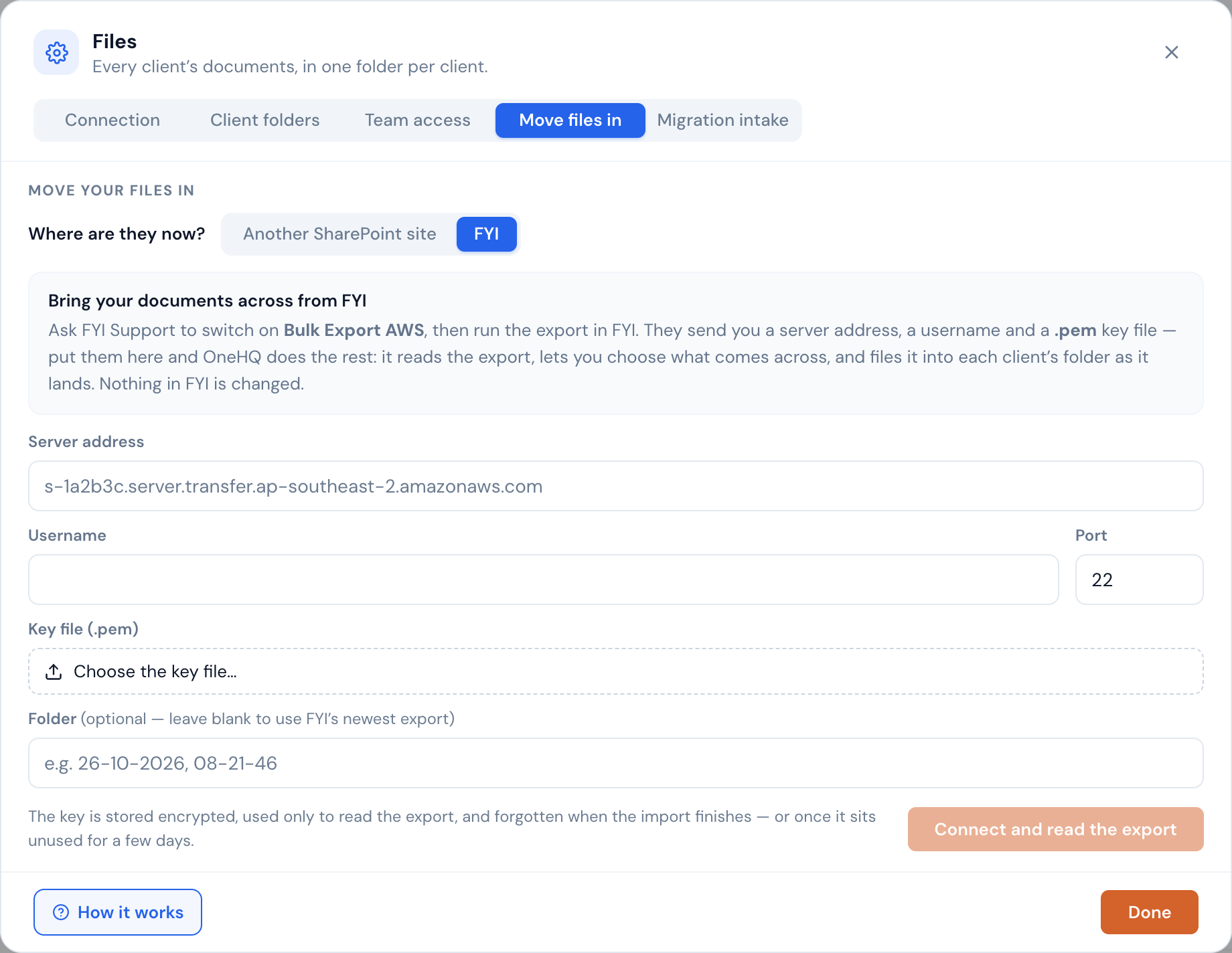
Go to Settings → Integrations → Files and press the cog. Open the Move files in tab and choose FYI.
Enter what FYI sent you
Type in the server address and username, and choose the .pem key file. The port is filled in for you. The folder is optional: leave it blank and OneHQ uses FYI's newest export.
Press Connect and read the export
OneHQ connects to FYI's server and starts reading. Nothing is copied at this point.
OneHQ reads the export
OneHQ lists every document in the export and reads FYI's own report of which client, cabinet and year each one belongs to. Nothing is copied yet.
For a whole practice, reading can take a few hours. It's safe to close the window while it works; come back to the same tab later.
Choose what comes across
Once the export is read, OneHQ shows you what it found:
- Clients matched, and the number of documents and their size.
- FYI shortcut links. These are links to other documents, not documents themselves, so they stay behind.
- Anything too large to bring. A file over 250 MB isn't brought across. Copy those by hand from the export.
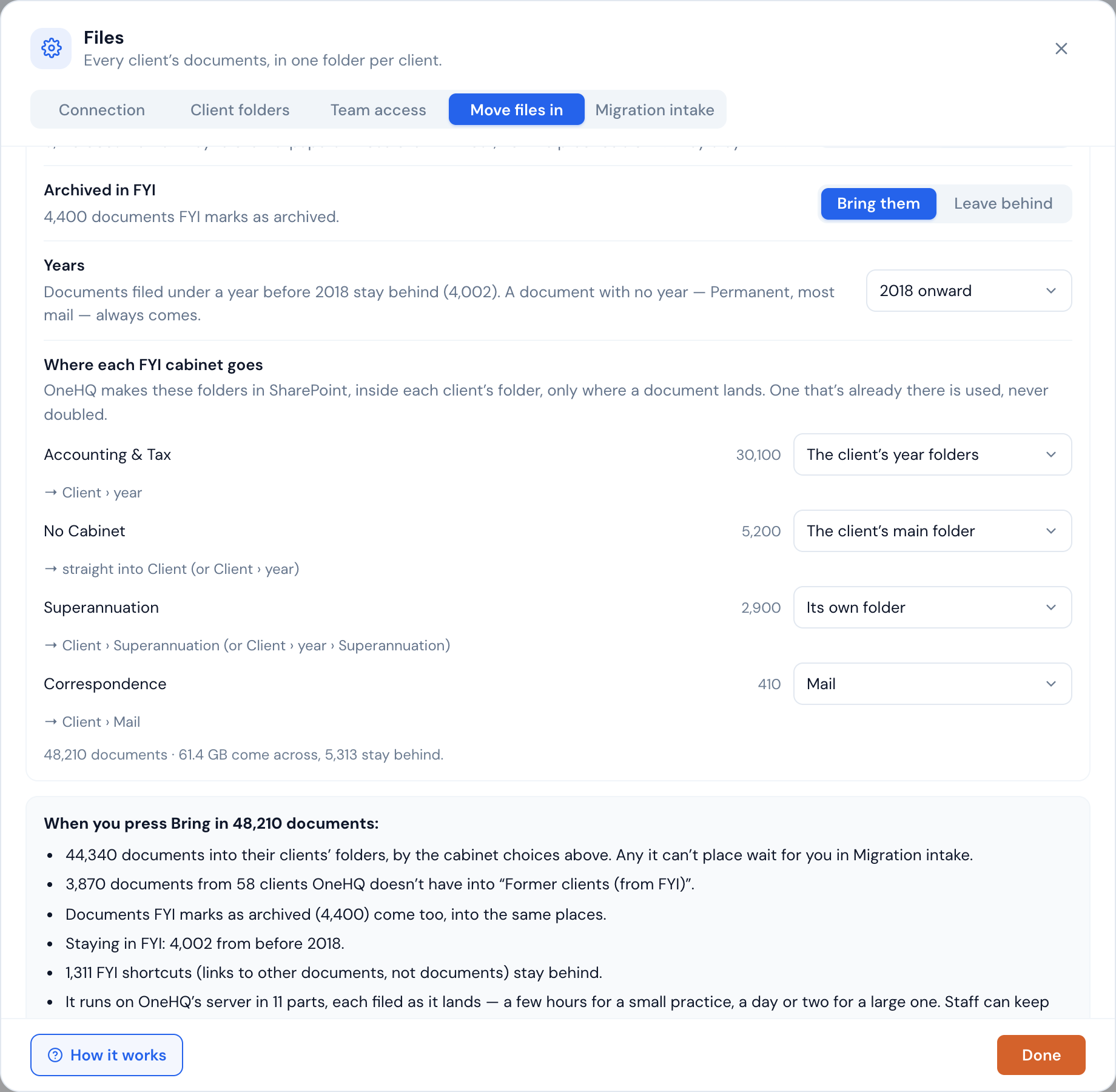
Then you make a few choices. Each one starts on the setting most firms want, so you only change what you need to:
| Choice | What it does |
|---|---|
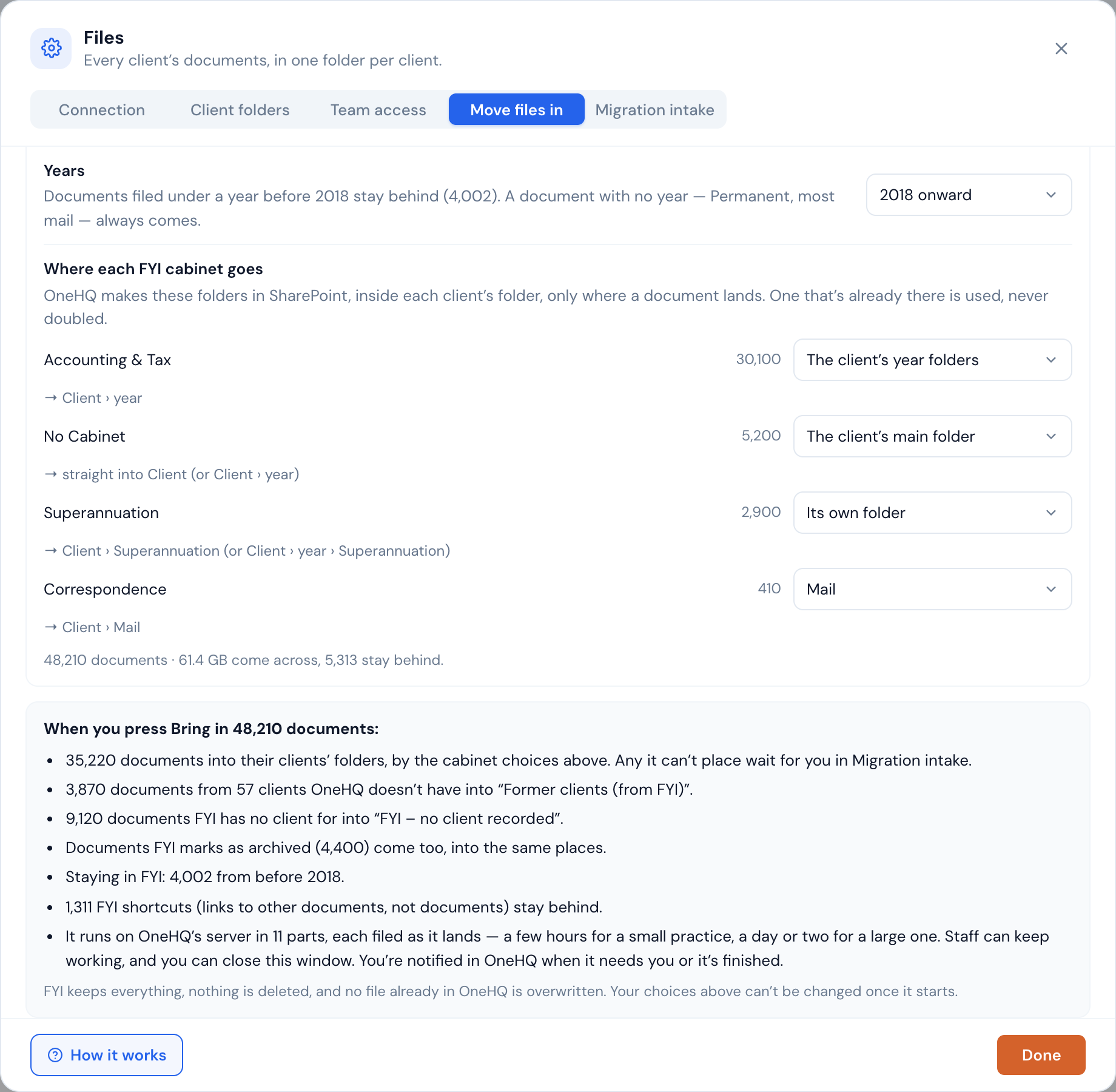
| Clients OneHQ doesn't have | Brought into Former clients (from FYI), one folder per client, unless you choose Leave behind. |
| Documents FYI has no client for | Brought into FYI – no client recorded, unless you choose Leave behind. |
| Archived in FYI | Documents FYI marks as archived are brought, unless you choose Leave behind. |
| Years | An optional cut-off, such as 2018 onward. Documents filed under an earlier year stay in FYI. A document with no year (Permanent, most mail) always comes. |
| Where each FYI cabinet goes | Where its documents go inside each client's folder, or leave that cabinet behind. |
For example, Accounting & Tax can go into the client's year folders and Correspondence into a Mail folder. The screen shows the path each cabinet will take, so you can see the result before anything moves.
A current client FYI names differently
Sometimes a client you still have is named differently in FYI, so it shows up in the list of clients OneHQ doesn't have. You can send it to its OneHQ client from that list instead. OneHQ suggests likely matches, but nothing moves to a client until a person presses Use.
Where documents go
| The document belongs to | It goes to |
|---|---|
| A client OneHQ knows | That client's folder, by year |
| An FYI client OneHQ doesn't have (usually a former client) | A folder called Former clients (from FYI), one folder per client, unless you chose to leave them behind |
| No client recorded in FYI | A folder called FYI – no client recorded, unless you chose to leave them behind |
Bring it in
Before anything starts, OneHQ lists in plain words exactly what will happen when you press Bring in: how many documents go into clients' folders, how many go to the former clients and no-client folders, and what stays in FYI. Your choices can't be changed once it starts.
Once you start:
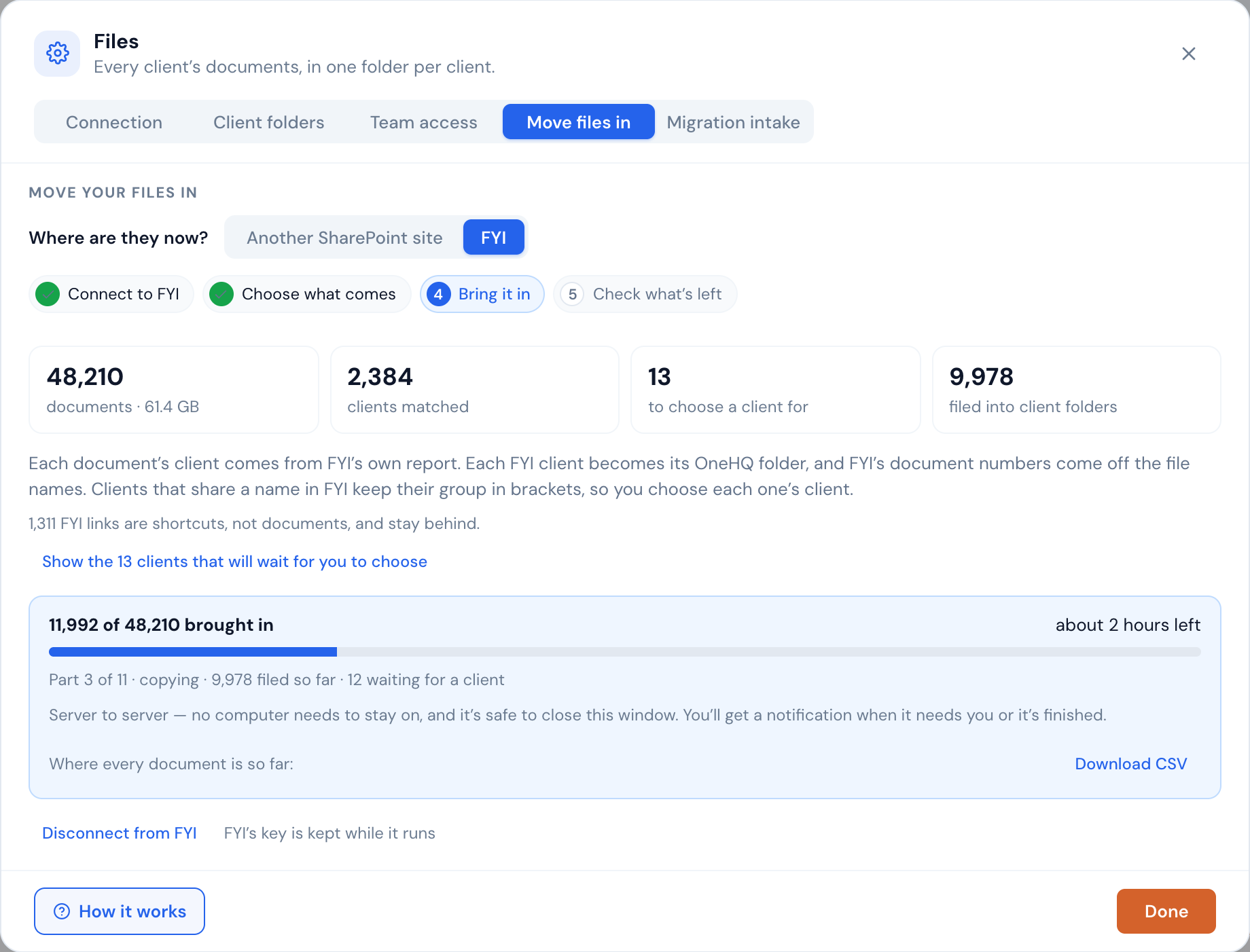
- It copies server to server. OneHQ copies straight from FYI's server to your firm's SharePoint. No computer needs to stay on, staff keep working as normal, and you can close the window.
- It works in parts. Each part holds up to 5,000 documents, with a client's documents kept together. Each part is filed into client folders as soon as it lands, then the next part starts by itself.
- It tells you. You're notified in OneHQ when it needs you or has finished.
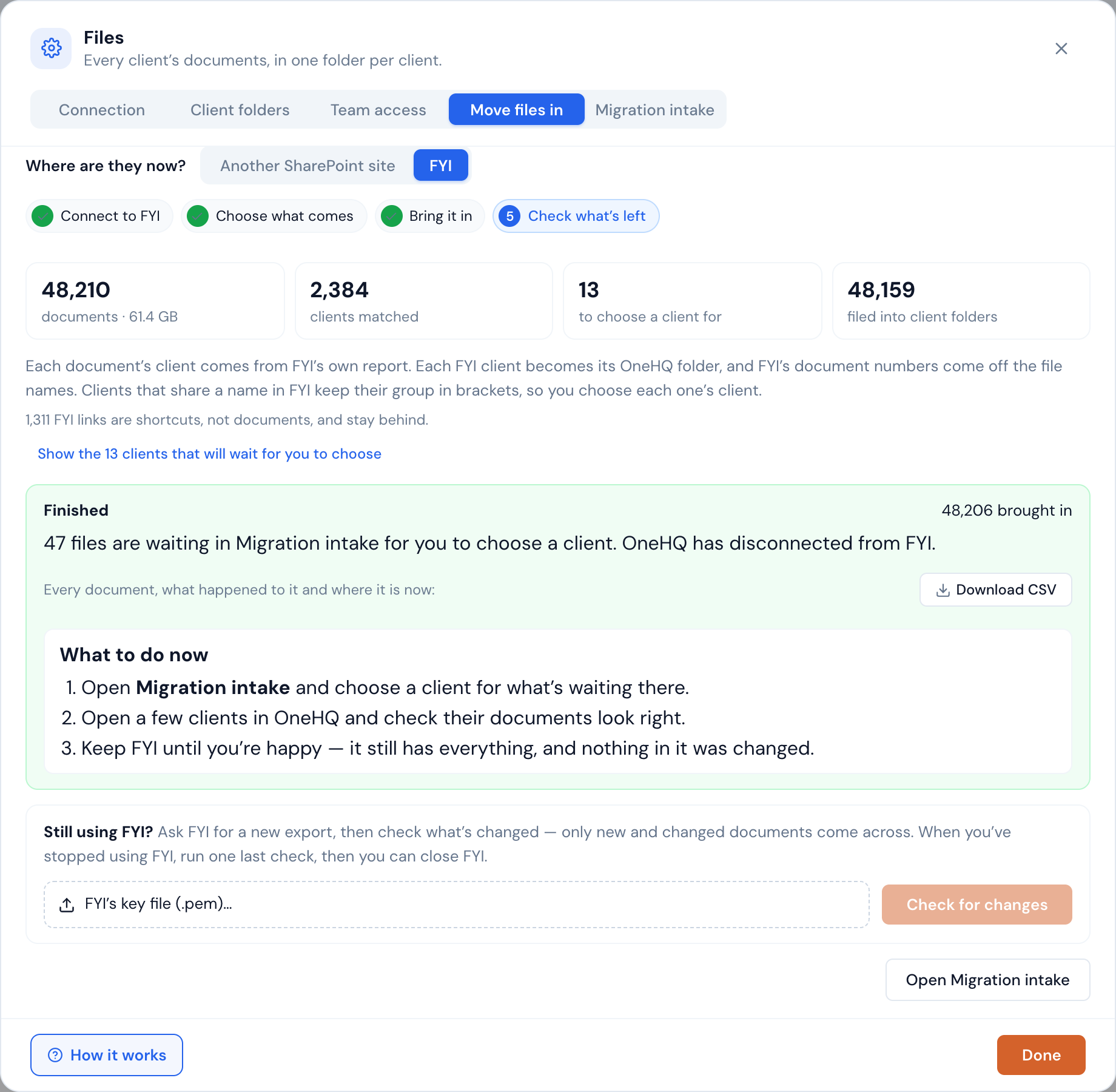
How documents are filed
- Only an exact client match is filed. Anything else waits for a person to choose.
- Years carry over. FYI's years go into OneHQ's year folders.
- No doubling up. A document the client already has is set aside, not copied a second time.
- A different version is set aside for a person to check when a document with the same name is already filed.
- Nothing is ever overwritten.
- FYI is left as it was. FYI keeps its originals and nothing in FYI is changed.
What's left: Migration intake
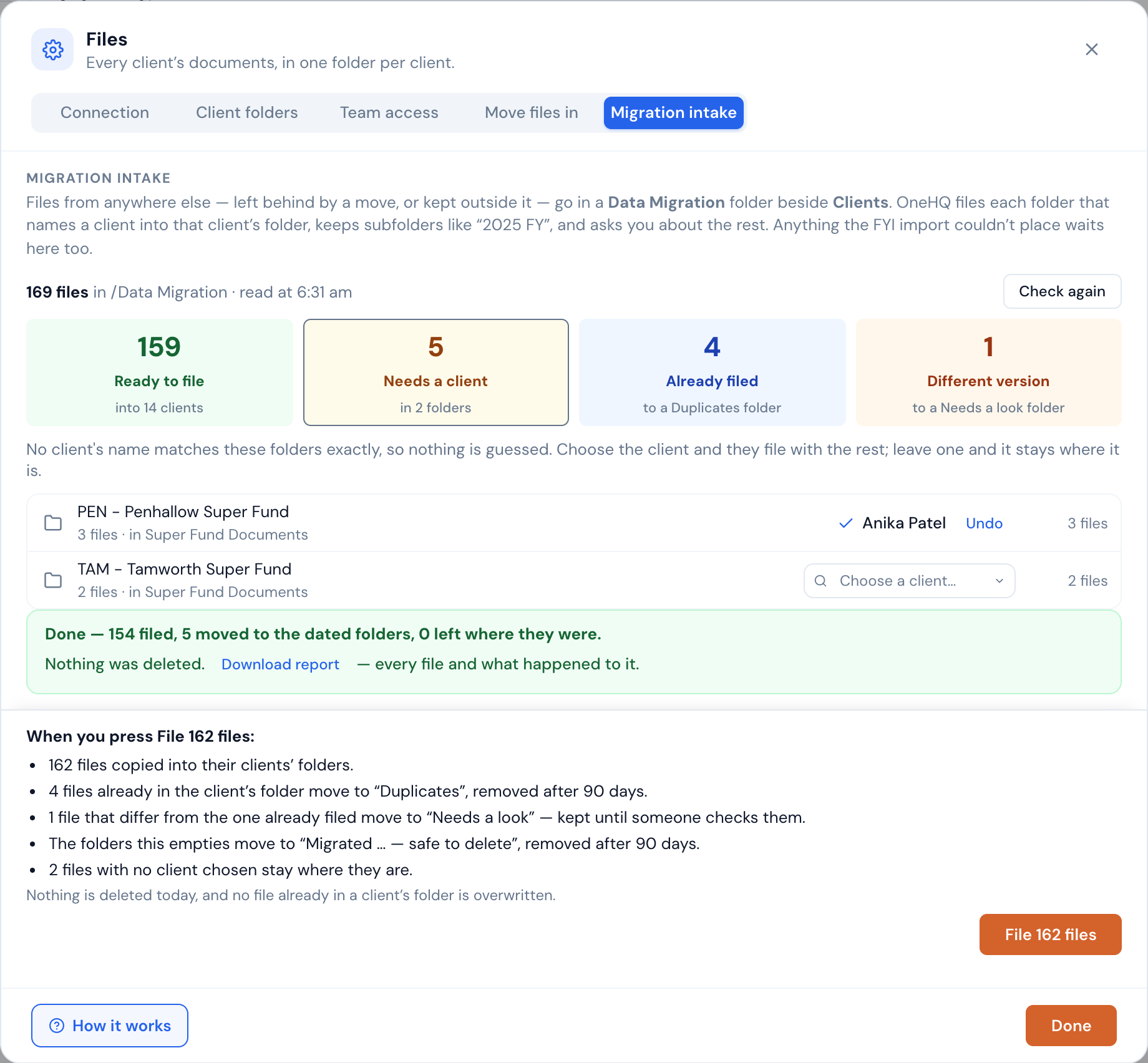
Documents whose client couldn't be matched exactly wait in the Data Migration folder. The Migration intake tab (beside Move files in) lists them by folder, with four counts: Ready to file, Needs a client, Already filed and Different version.
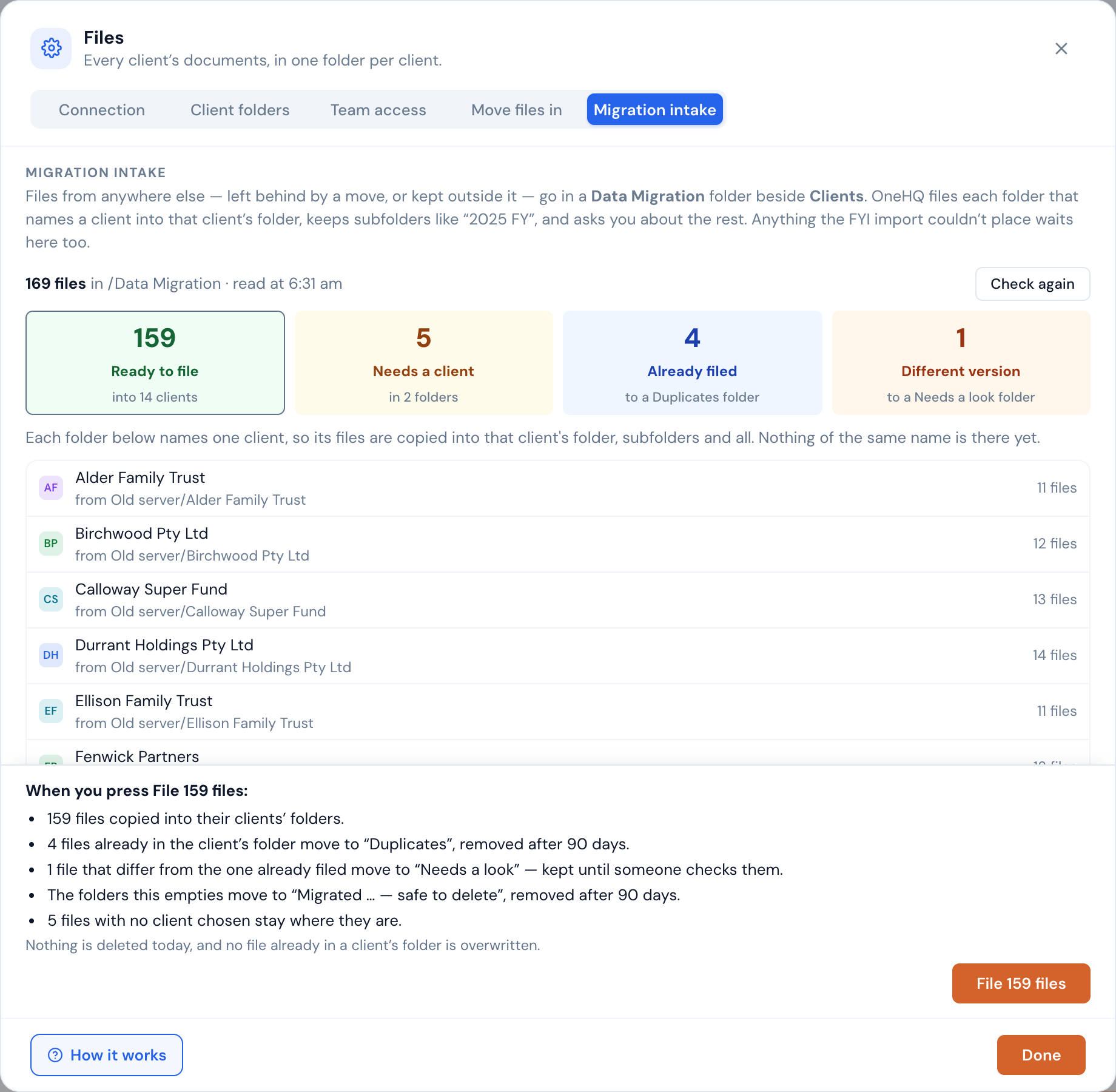
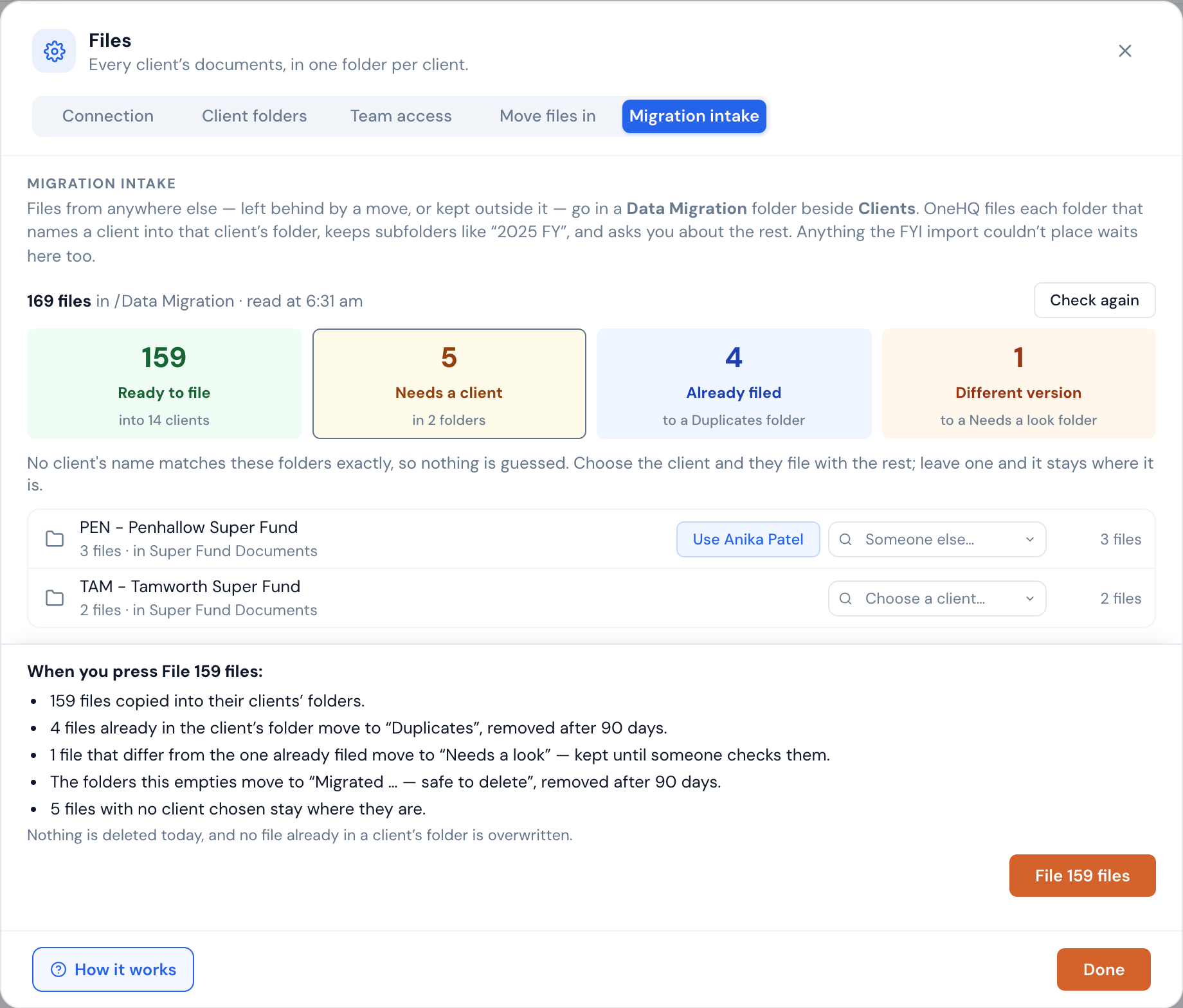
Choosing a client
For a folder that doesn't match a client exactly, you choose the client. OneHQ may suggest one, but it only suggests; it never guesses. Leave a folder alone and it stays where it is.
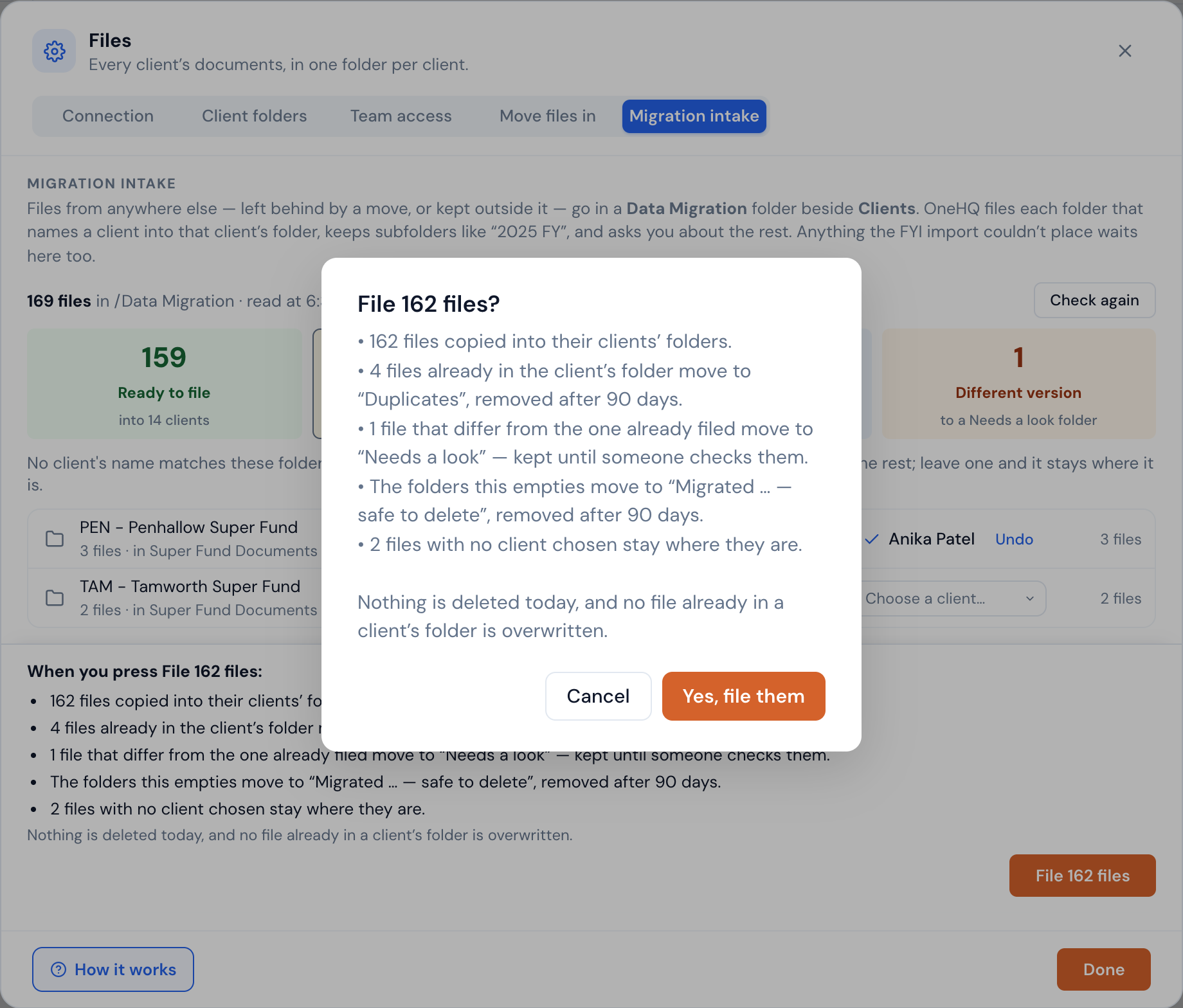
Pressing File
Pressing File shows what will happen and asks you to confirm. Then:
- The files are copied into the client's folder.
- The originals are kept in a dated Migrated … — safe to delete folder, removed automatically after 90 days.
- Duplicates go to a dated Duplicates folder, also removed after 90 days.
- A different version goes to Needs a look, which is never removed.
If something stops
Every document is tracked on its own, so an interruption doesn't lose your place.
- If OneHQ restarts or an update goes out mid-copy, it carries on where it stopped. Nothing is copied twice and nothing is lost.
- If Microsoft or FYI asks OneHQ to slow down, it waits and tries again.
- If a file genuinely fails, it's tried again automatically. Anything still left at the end is listed with its reason.
- Migration intake tries again by itself for anything it couldn't file: 10 minutes, an hour, and six hours later.
Checking it all came across
- Download CSV on the FYI import lists every document: what happened to it and where it is now.
- Download report in Migration intake lists every file it handled.
Every download is recorded in OneHQ's audit log.
Still using FYI for a while
If your team keeps working in FYI after the first import, ask FYI for a new export and press Check for changes. Only new and changed documents come across.
A changed document replaces OneHQ's copy if nobody has edited it in OneHQ; the earlier version stays in the file's history. If someone has edited it in OneHQ, the new one lands beside it instead.
What it costs
Migration is included up to 500 GB per practice, counted across every migration you run on what is actually copied.
Anything beyond that is charged at our cost of transferring it, 18c per GB + GST, rounded up to the whole GB, on your next OneHQ bill after the migration finishes. Before a migration that would go over the allowance starts, the screen shows you an estimate and asks you to agree to the charge; nothing is copied until you do. Leaving things behind lowers it.
A card on file is needed to start. The full wording is in section 8.7 of our terms.
Frequently asked questions
How long does it take?
Reading the export can take a few hours for a whole practice. Copying depends on how much there is: a few hours for a small practice, a day or two for a large one. Staff work normally throughout.
Do I need to stay logged in?
No. The copy runs server to server, so you can close the window and turn your computer off. OneHQ notifies you when it needs you or has finished.
What should we do with FYI afterwards?
Keep FYI until you're happy. It still has everything, and nothing in it was changed. Open a few clients in OneHQ, check their documents look right, and use the CSV to account for every document.
What about files over 250 MB?
OneHQ tells you how many there are before you start. Copy those by hand from the export into the client's folder.
Need a hand with your move?
Get in touchFYI and FYI Docs are trademarks of their owner. OneHQ is not affiliated with FYI.